Sharing with Renku
Uploading to Renku
Renku is a platform for reproducible and collaborative data science projects. See their documentation for more information.
You can use Solidipes to easily share your project using a Renku platform, such as renkulab.io.
Fellow researchers will have access to an online version of the web interface, usually started locally using solidipes report.
Follow the steps below to publish an existing study.
Log into the Renku platform of your choice, such as renkulab.io.
Go to the GitLab instance linked to the Renku platform (button on the top right of the screen).

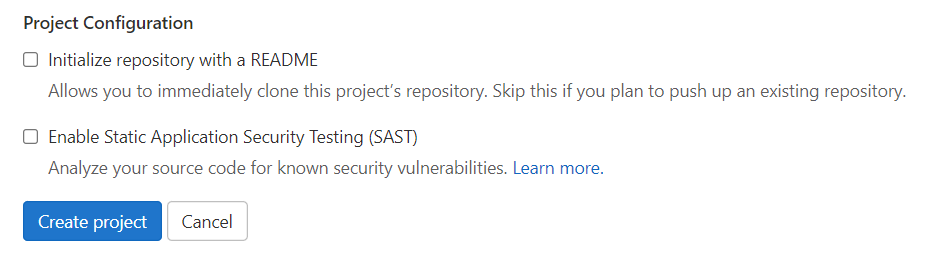
Create a new project by clicking on the “New project” button, and then “Create blank project”. Put the project name, description, and visibility to your liking. In the Project configuration section, untick the “Initialize repository with a README”, as your Solidipes project already contains one. Then, click on “Create project”.
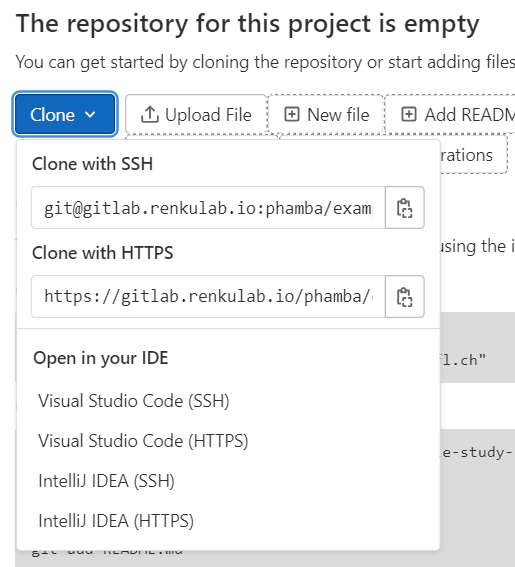
Retrieve the URL of the project by clicking on the “Clone” button, and copy the URL to the clipboard. You can choose either the
httpsor thesshlink. If you choosessh, you must add and SSH key to the GitLab configuration.
Open a terminal and go to the repository of your project. If not done already, initialize the directory with
solidipes init
To upload your project to the Renku platform, run
solidipes upload renku <URL> solidipes
where <URL> is the URL you copied in step 4. A few files will be added to your project to allow Renku to run it. You may accept to replace some files existing locally.
A link will be printed in the terminal to access your project on the Renku platform.
Updating a Renku project
You can allow fellow researchers to help you curate your project by adding them to the list of members of the GitLab repository (at least “Developer” role). They will be able to add comments to your files.
Saving online changes
To save changes made in the online interface, such as adding comments to a file or changing its type, do the following:
In the online web interface, click on the “View/Edit in Jupyterlab” link in the sidebar.
In the Jupyterlab interface, open a “Terminal” tab.
Commit and push your changes using
gitcommands:
git add .
git commit -m "message"
git push
Retrieving changes made online
To retrieve changes made in the online interface to your local repository, run the following command:
git pull renku main
Updating online interface with local changes
To update the online interface with changes made locally, simply run
solidipes upload renku
If other changes were made online, you need to first retrieve them (see above).