Data curation
Data curation ensures that datasets are stored in valid formats and can be interpreted correctly by Solidipes.
Solidipes validates files by comparing their MIME type with their file extension. If the MIME type does not correspond to the extension, the dataset is flagged as invalid.
For example, an image saved with a .dat extension will raise an error.
The recommended way to curate datasets is through the web report.
Using the Web Report
With a running web report you can inspect the status of your data and identify potential issues.

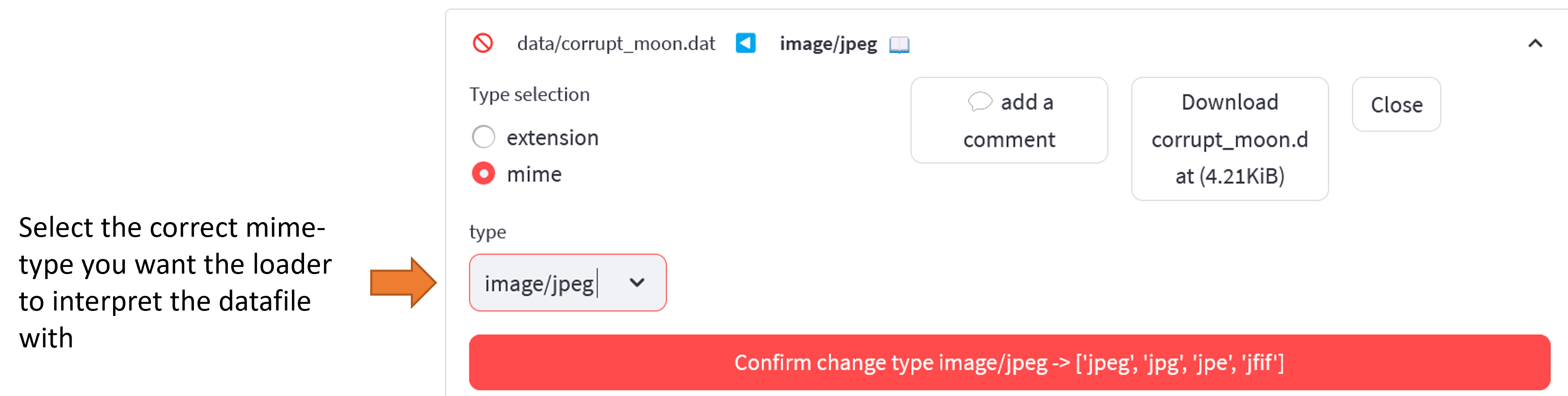
When the file extension does not match the MIME type, you can specify which loader Solidipes should use.
You can either:
specify the extension the file should be interpreted as,
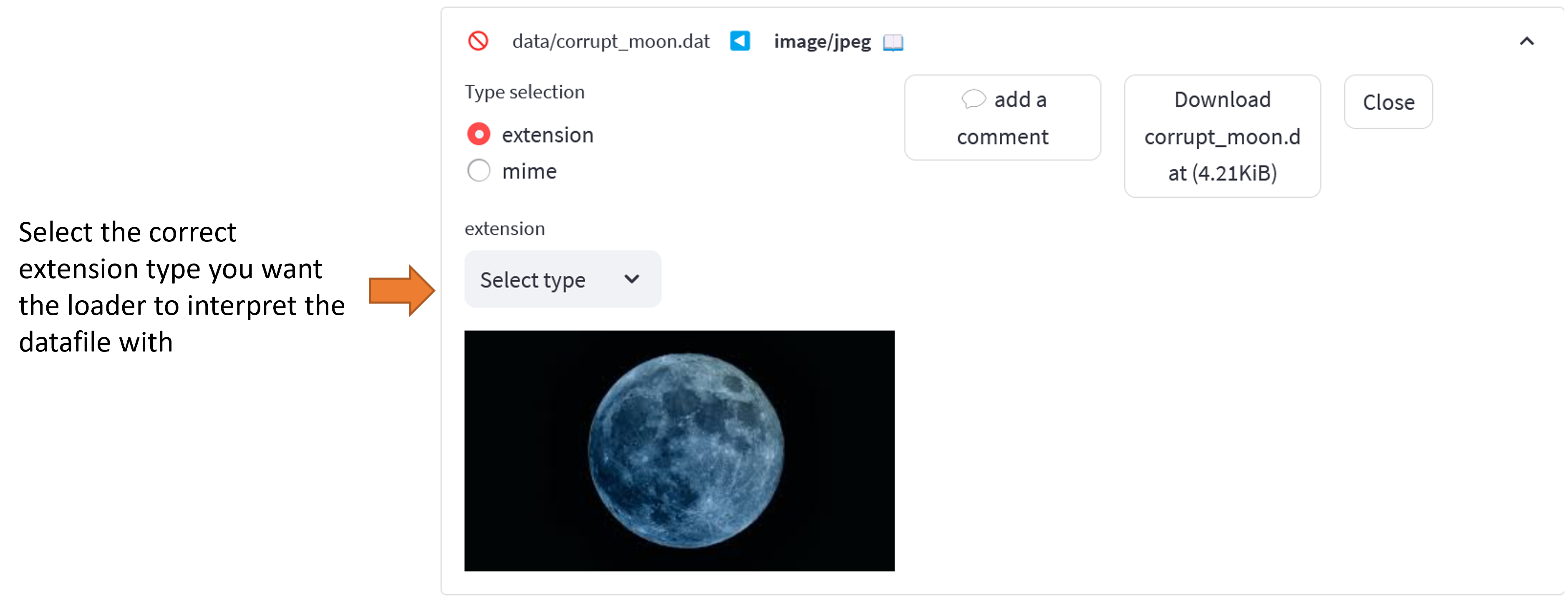
or specify the MIME type directly.
Attention
Changing the loader in the web report does not rename the file locally.
If you want to change the actual file extension, this must be done manually.
After making local changes, refresh the webpage, click on the Force folder scan button, or run the web-report command again.
Supported Loader Formats
The supported loader formats are:
Data type |
Extensions |
Comments |
|---|---|---|
DataContainer |
||
Binary |
Default loader |
|
Code Snippet |
|
|
File |
||
|
||
Markdown |
|
|
Meshio |
|
|
|
||
Tables |
|
|
Text |
|
|
Video |
|
|
Unsupported formats are loaded using the default Binary loader.
Examples of unsupported formats:
Data Type |
Extensions |
|---|---|
Sound |
|
Data grouping
Solidipes automatically groups datasets with consecutive names.
For example:
img1.png
img2.png
img3.png
will be grouped as:
img*.png
This is useful for simulation outputs, time-dependent data, or image sequences.
Attention
If one dataset in the sequence is missing, Solidipes does not raise a warning.
Instead, separate groups are created. For example:
img1.png
img2.png
img10.png
becomes:
img1.png,img2.png
img10.png
Clicking on a group displays the status of each dataset individually.
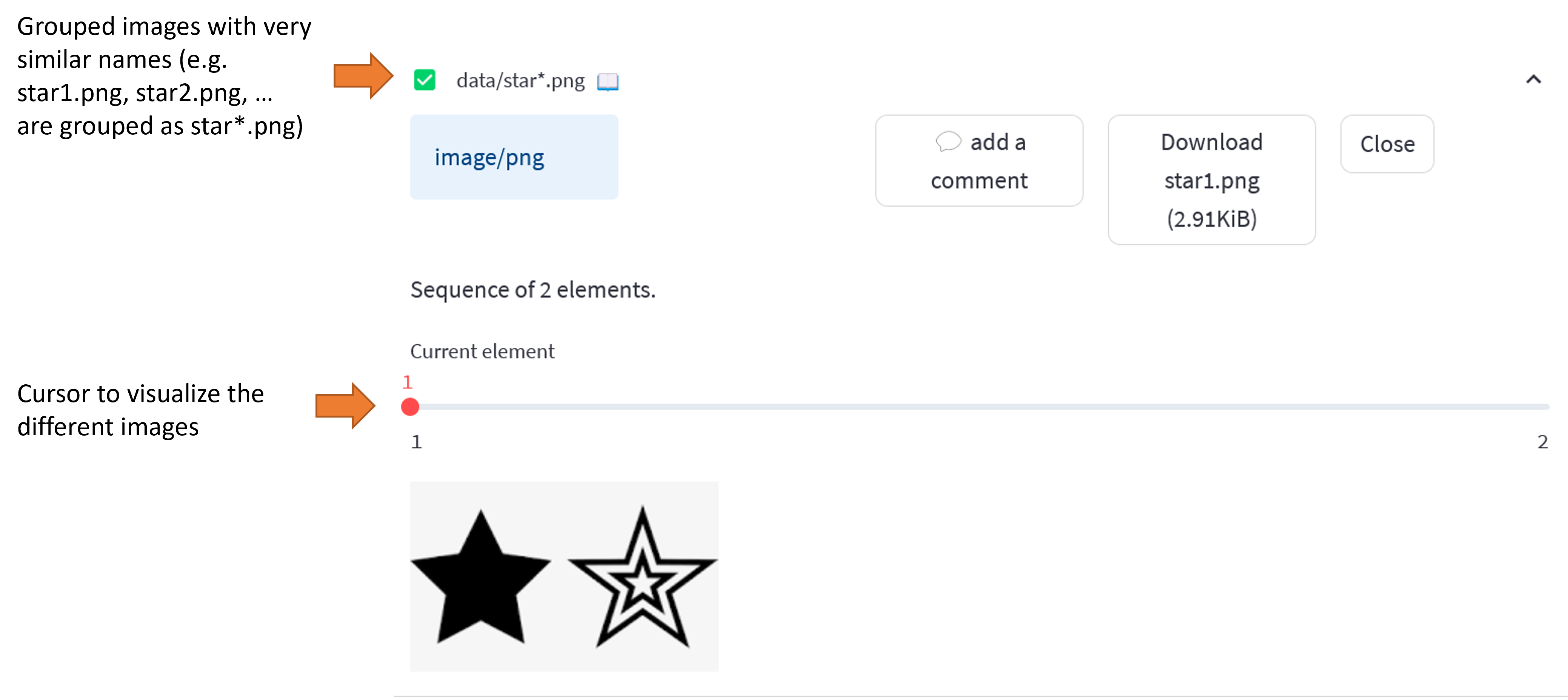
If you do not want datasets to be grouped, rename the files locally.
Features
Feature |
Description |
|---|---|
Sequence grouping |
Consecutive datasets are grouped automatically. |
Missing sequence entries |
Missing datasets split the sequence into separate groups. |
MIME type validation |
Errors are raised when MIME type and extension do not match. |
Image curation
The web report allows images to be visualized directly.
If an image is corrupted, it cannot be displayed.
Case |
Behavior |
|---|---|
Single supported image |
Displayed normally. |
|
Loaded as image sequences. |
Attention
.gif and .tiff files are interpreted as sequences of images rather than animated files.
Tables curation
For supported table formats (.csv and .xlsx), the web report checks:
whether the file is empty,
whether the file is valid,
whether the table structure is valid,
whether headers and body are present.
The table is visualized directly in the web report.
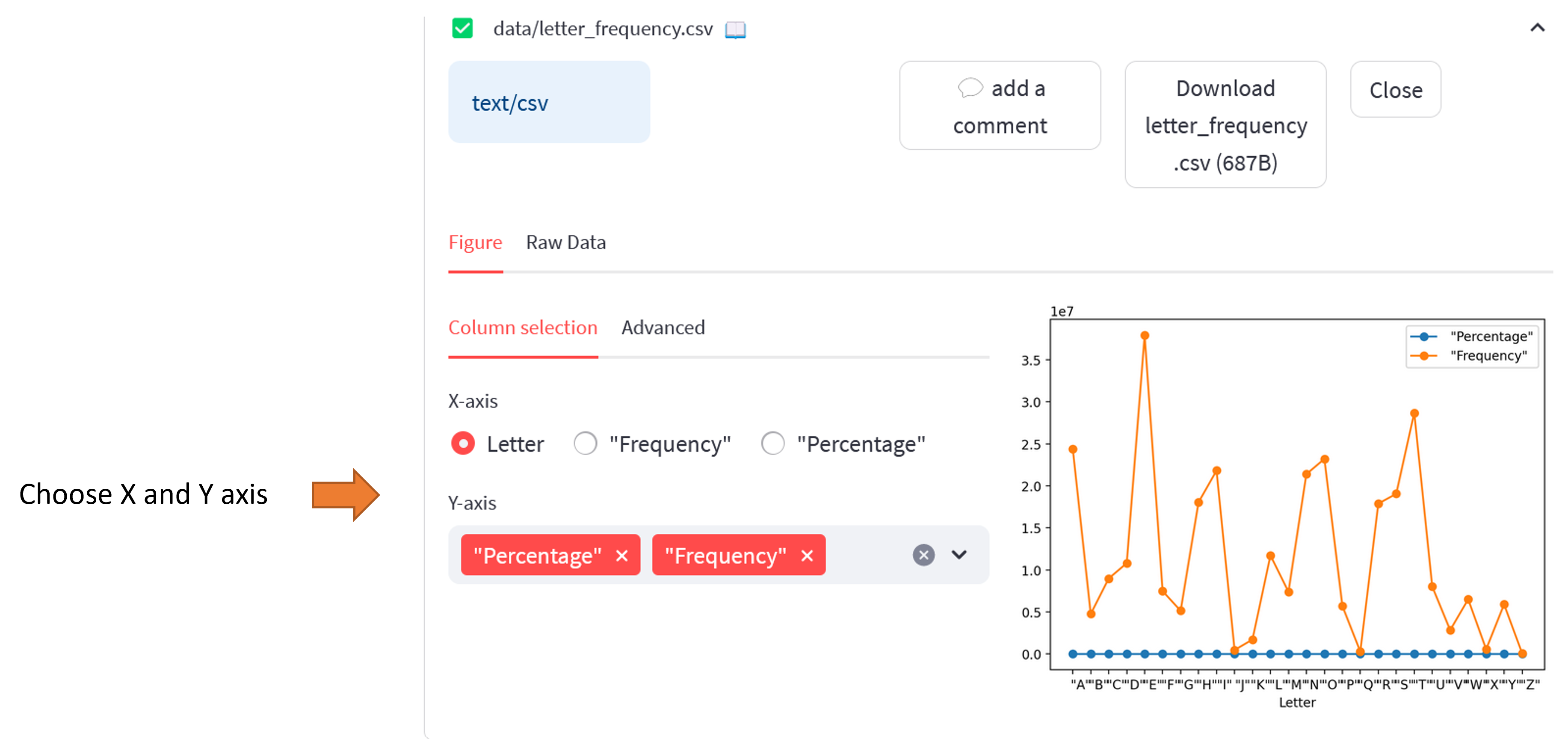
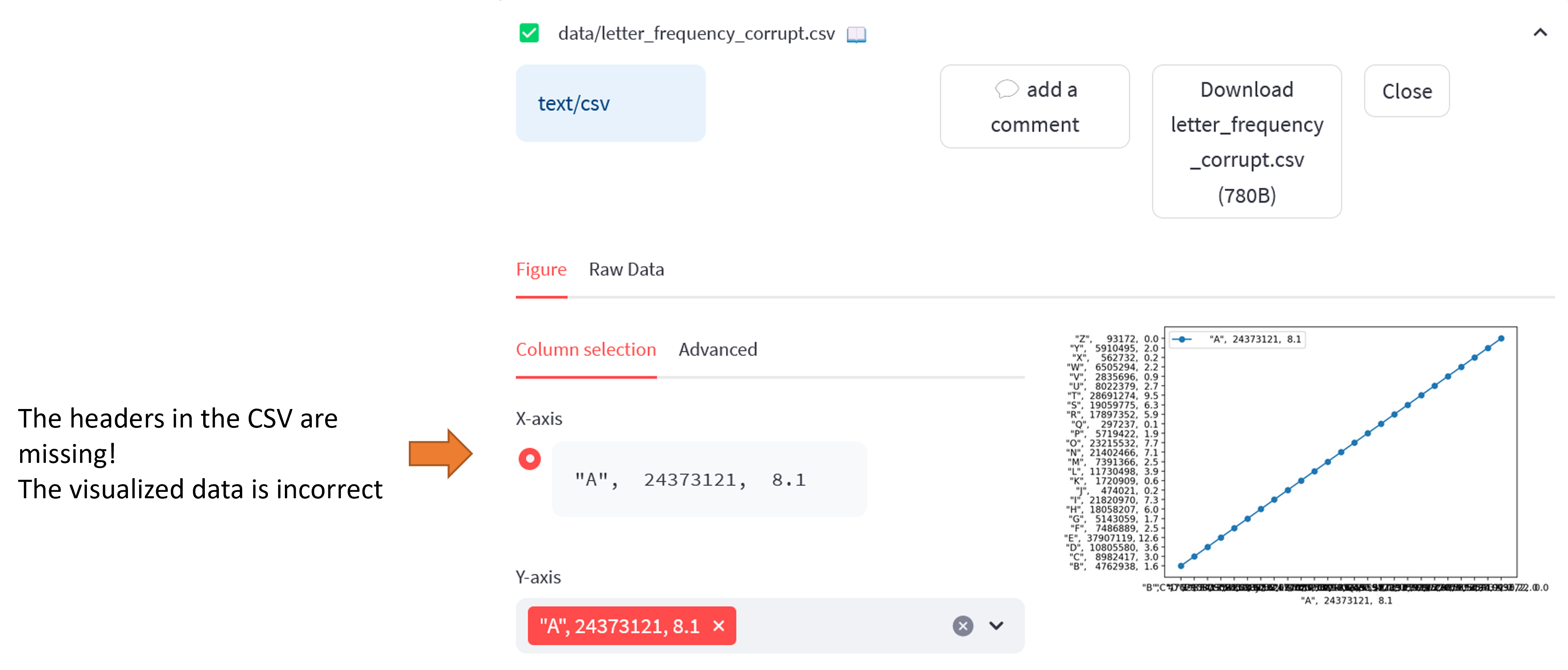
Missing headers may result in incorrect plotting.
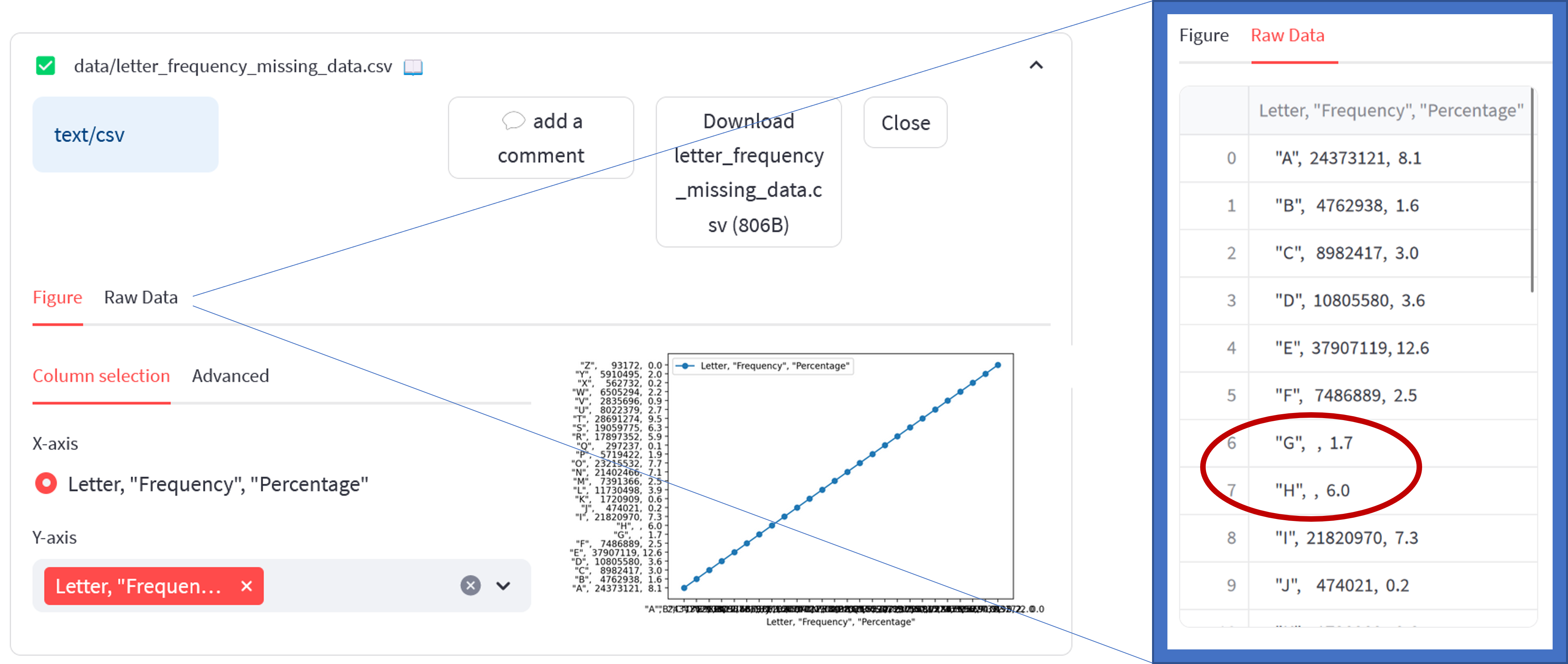
Missing data may also affect plotting quality.
Case |
Behavior |
|---|---|
Missing header |
Plotting may be incorrect, but no error is raised. |
Missing data |
Plotting may be incorrect, but no error is raised. |
Pyvista mesh curation
Meshes are visualized directly in the web report.
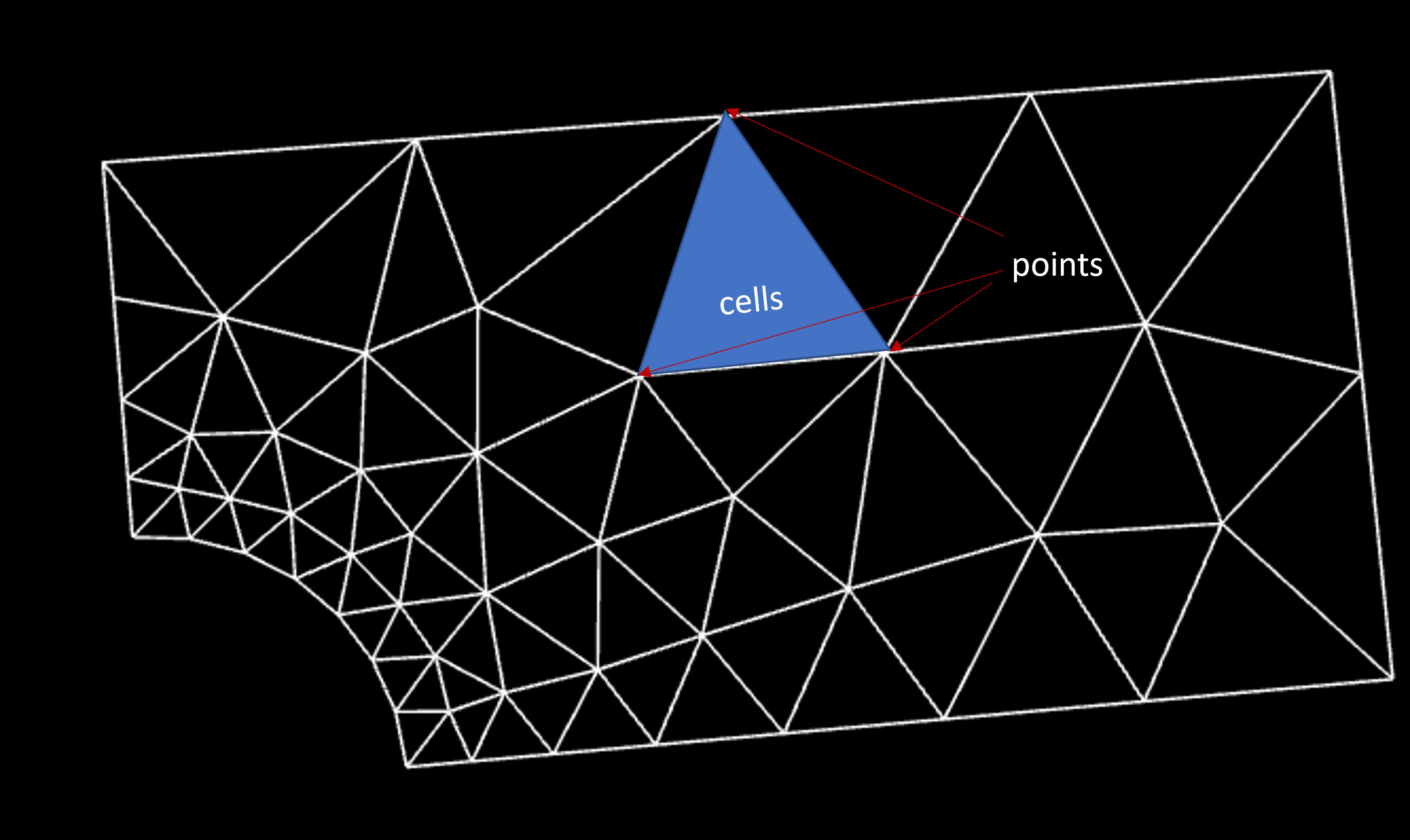
The mesh is composed of two important concepts:
Cells: volumetric elements enclosed by points. Cells cannot be warped.
Points: vertices defining the mesh geometry. Points can be warped.
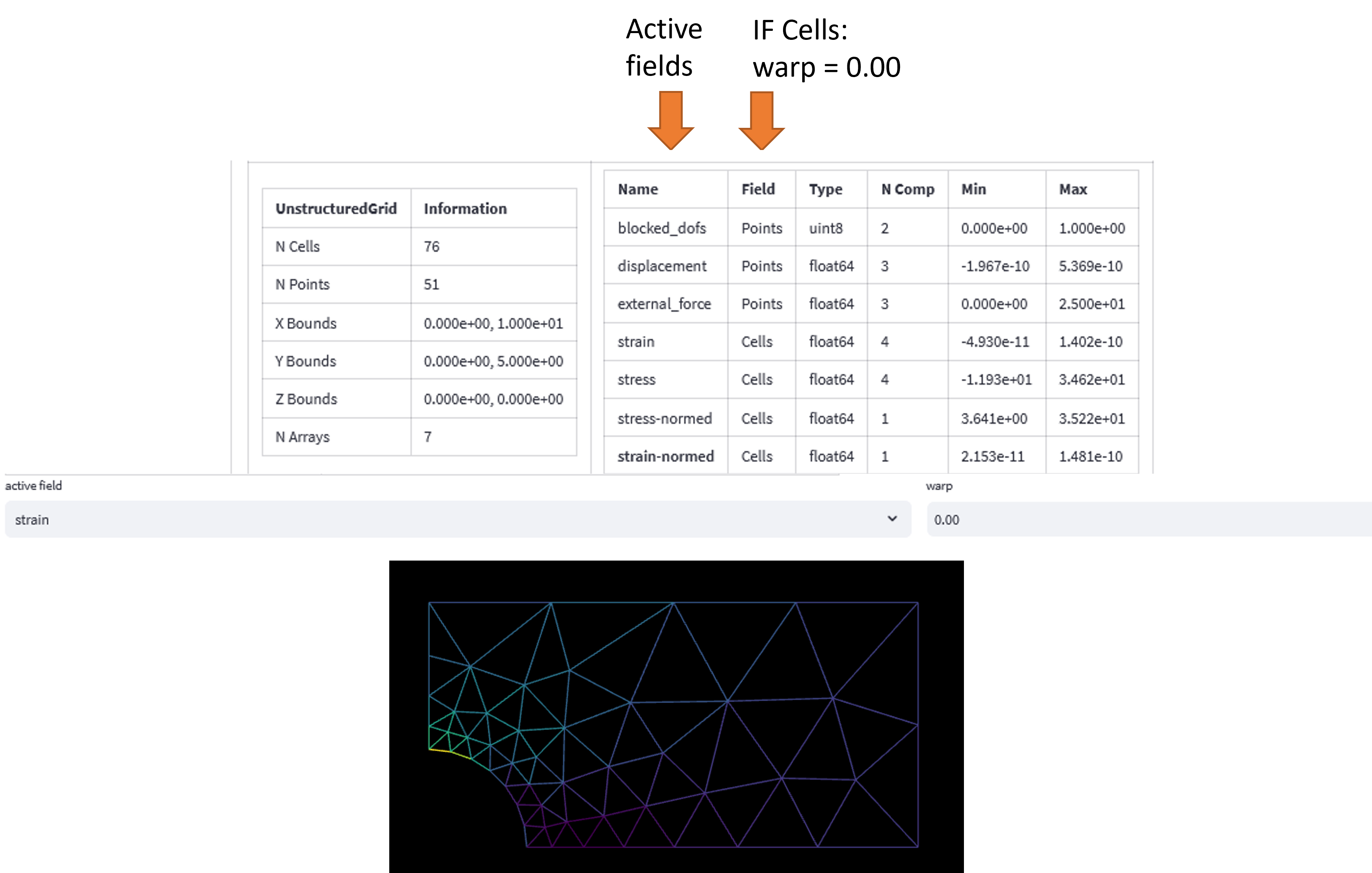
You can select an active field to visualize deformation or displacement.
Component |
Description |
|---|---|
Cells |
Volumetric mesh elements. |
Points |
Mesh vertices defining geometry. |
Ontology
Solidipes validates datasets against an ontology.
By default, the base Solidipes ontology is used. It includes checks such as:
presence of a
README.mdfile,CSV headers containing units,
workflow environments being documented.
A custom ontology can also be provided.
The ontology identifier may be:
a Python module:
solidipes.ontologies.solidipes
or a local Python file:
data/my_ontology.py
For more information on creating custom ontologies, see developer documentation.
Command Line Interface
Note
Direct CLI usage is not recommended. Prefer the web report.
To scan a dataset manually:
solidipes report curation /path/to/data/directory
Use the help command for additional options:
solidipes report curation -h