Publishing Research Data
Publishing onto Zenodo through the Web Interface
Zenodo is a research data sharing platform that allows you to publish and share your research outputs, while associating it with a DOI (Digital Object Identifier). This tutorial will guide you through the process of creating a personal token on Zenodo and uploading your files.
Attention
After upload, the project is still in a draft state. Here, both the data and metadata can still be modified. However, a published project on Zenodo is immutable (data cannot be modified nor deleted). Only the metadata can still be modified. If needed, a supplementary version can be uploaded under the same DOI.
Therefore, for testing, we recommend you publish onto Sandbox Zenodo first. The published project will look the same as on Zenodo (but it will not be permanent).
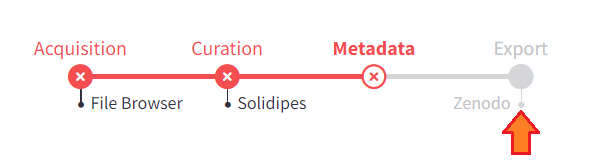
To publish your data from the web interface, go to the Export step.
Upload onto (Sandbox) Zenodo
Note
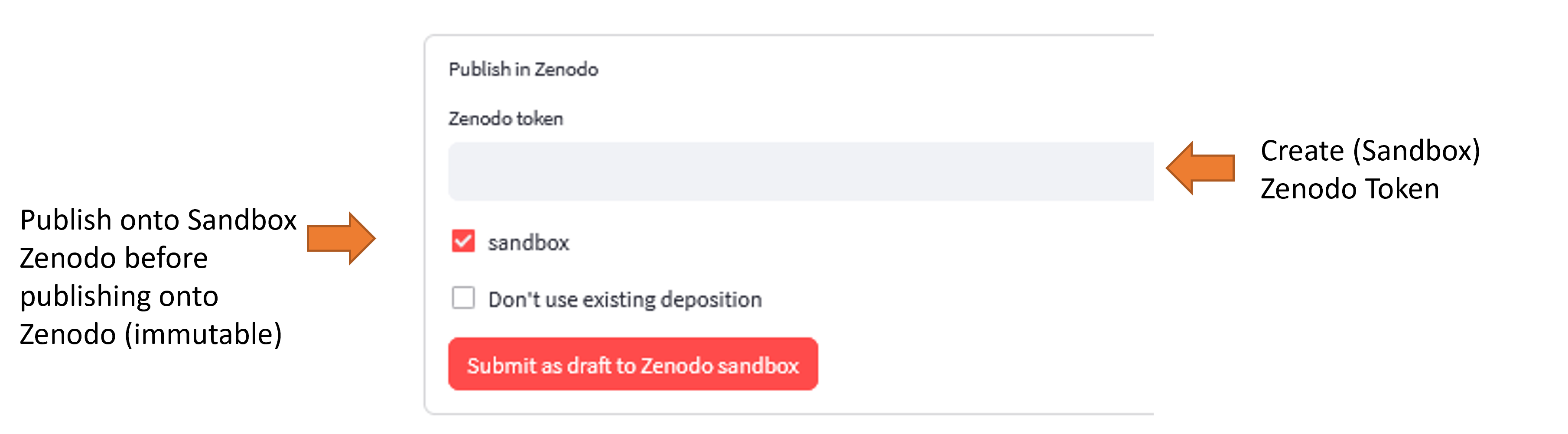
Since publications on Zenodo are immutable, you can test the upload by uploading onto Zenodo Sandbox.
The Zenodo Sandbox is a test environment that requires a separate token. See here on how to create a token.
If you want to use a new disposition, you can create a new one by clicking on the Don’t use existing disposition button.
Note
You can either upload onto a new deposition or an existing deposition (i.e. a deposition that has already been uploaded onto Zenodo).
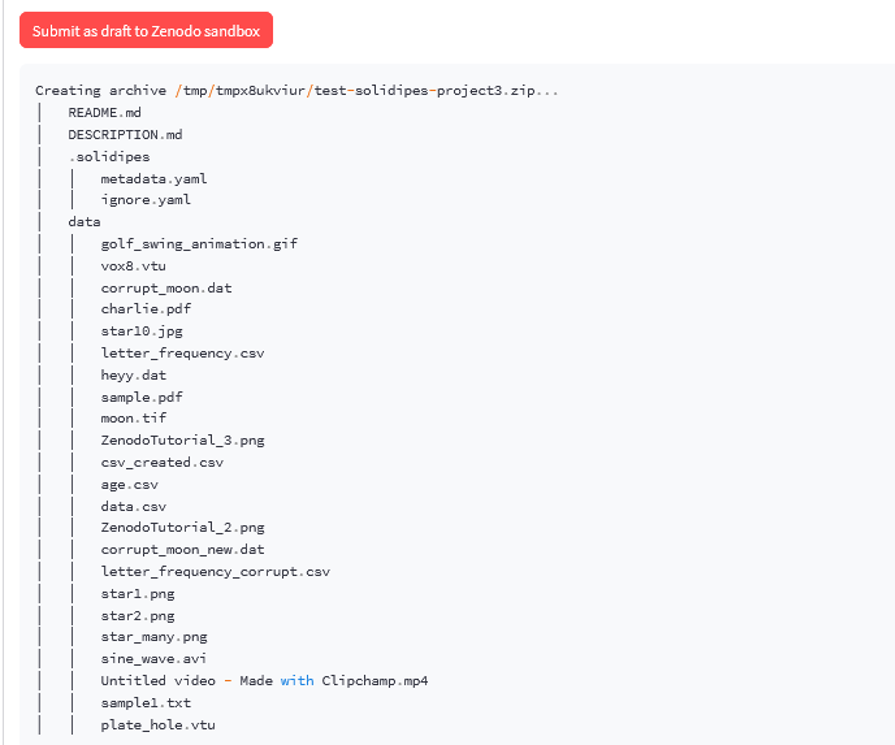
Submit as draft onto (Sandbox) Zenodo
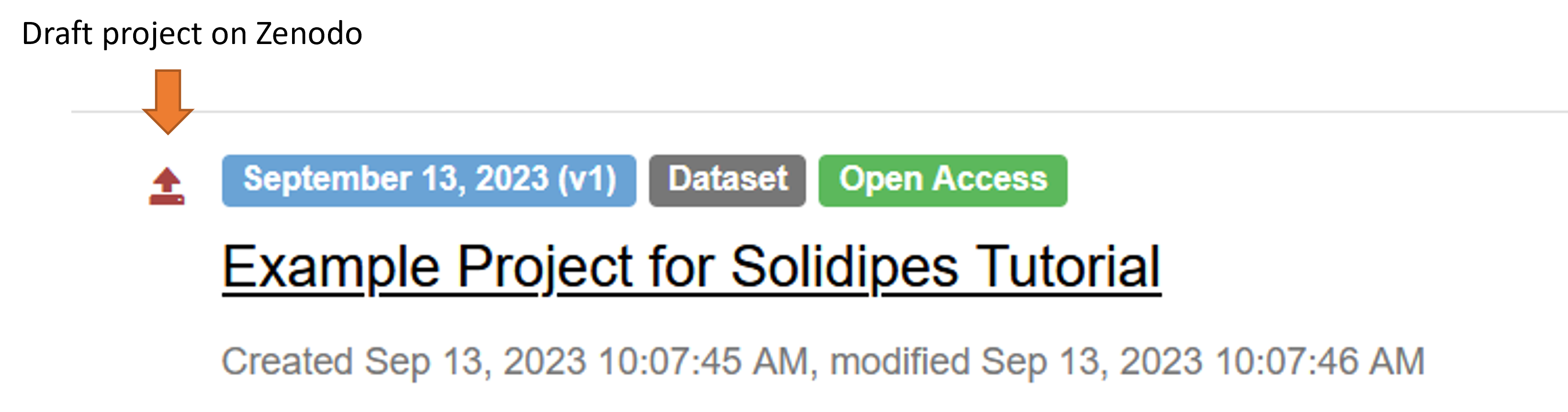
Review the metadata of the draft on Zenodo (or Sandbox Zenodo)
To access all of your drafts and publications on Zenodo, click the Uploads menu.

Then select the draft you want to review.
Note
You can create as many different drafts as necessary
Publishing onto Zenodo through the CLI
Make sure that you modified the .solidipes/study_metadata.yaml and the DESCRIPTION.md file to correspond to your data.
The solidipes upload zenodo command uploads your project onto Zenodo.
For example:
solidipes upload zenodo path/to/study --sandbox --access_token <your access token> --existing-deposition <your doi>
Note
if path/to/study is not specified, the root directory of the project will be used
Since publications on Zenodo are immutable after hitting the “publish” button, you can test the upload by uploading onto Zenodo Sandbox (if you want to upload on Zenodo directly, remove the --sandbox option).
You can either upload onto a new deposition or an existing deposition (i.e. a deposition that has already been uploaded onto Zenodo and still in the “draft” state).
Note
Uploading to Zenodo or Zenodo Sandbox requires a personal token (see: Create a Personal Token).
Create a Personal Token
Log in: Go to the Zenodo website (https://zenodo.org/) or Sandbox Zenodo (https://sandbox.zenodo.org/) for testing and log in to your account (you must create an account if you do not already have one).
Access Settings: Click on your profile icon in the top right corner and select “Settings” from the dropdown menu.
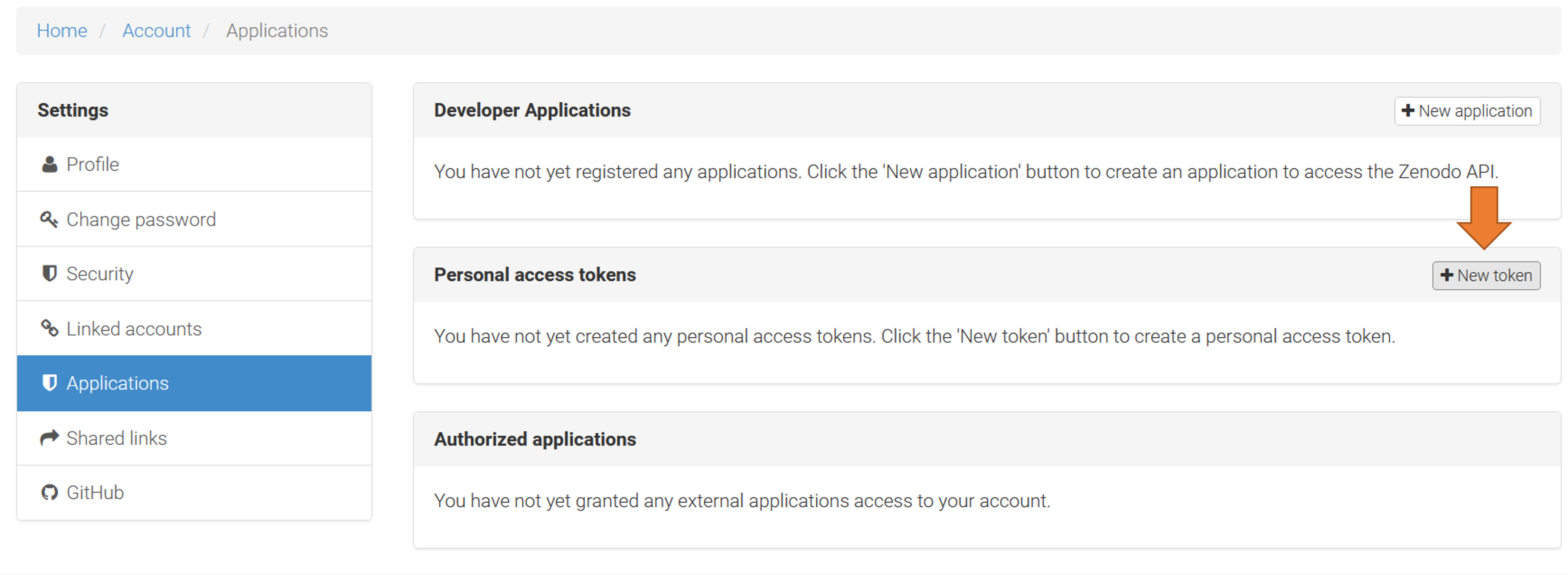
Personal Tokens: In the left sidebar, click on “Applications” and then on “Personal access tokens.”
Create Token: Click the “New Token” button.
Token Information: Provide a name for your token (e.g., “Zenodo Upload Token”) and select the desired scopes (permissions to your personal access token). For this tutorial, we will select “Deposit: Write.”
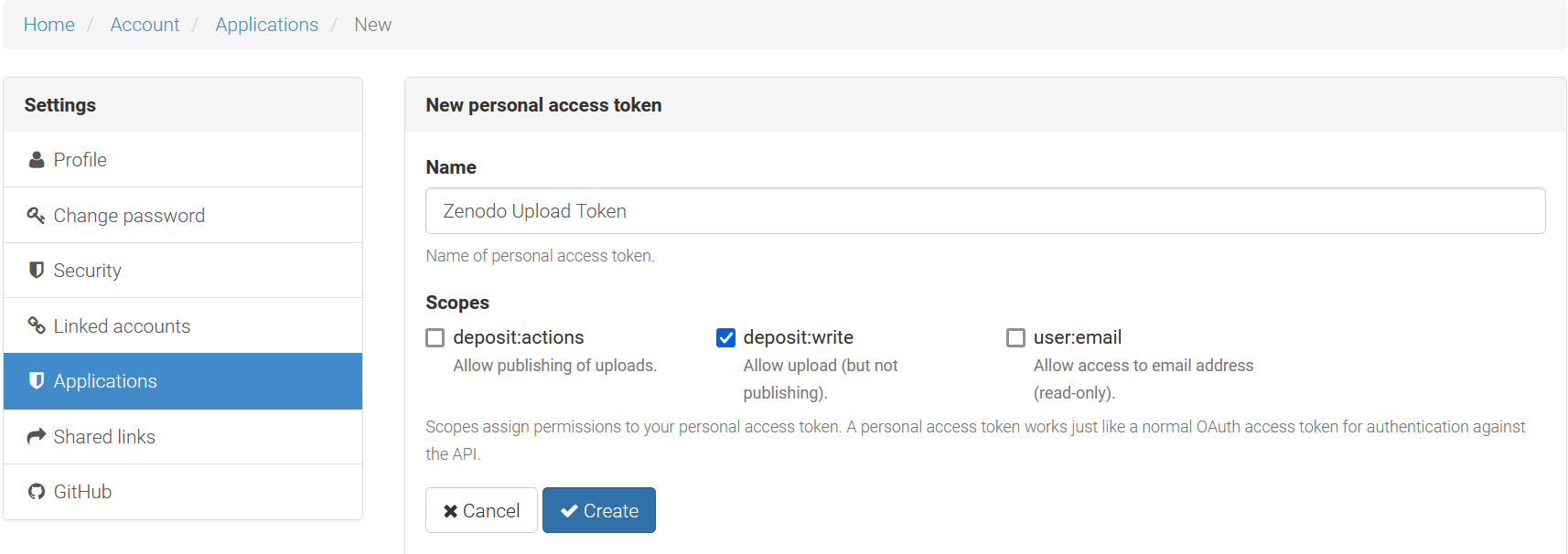
Generate Token: Click the “Create Token” button. Your token will be generated. Make sure to copy and store it in a secure place, as you won’t be able to see it again.
Congratulations! You’ve successfully uploaded your research data to Zenodo.
For more information and advanced features, explore the Zenodo documentation at https://help.zenodo.org/.